Help with adding
How to add a Fixtures24.com calendar to your calendar app. Set it up once, and changes to the fixture list come in automatically.
Fixtures24.com as an app on your phone ↓
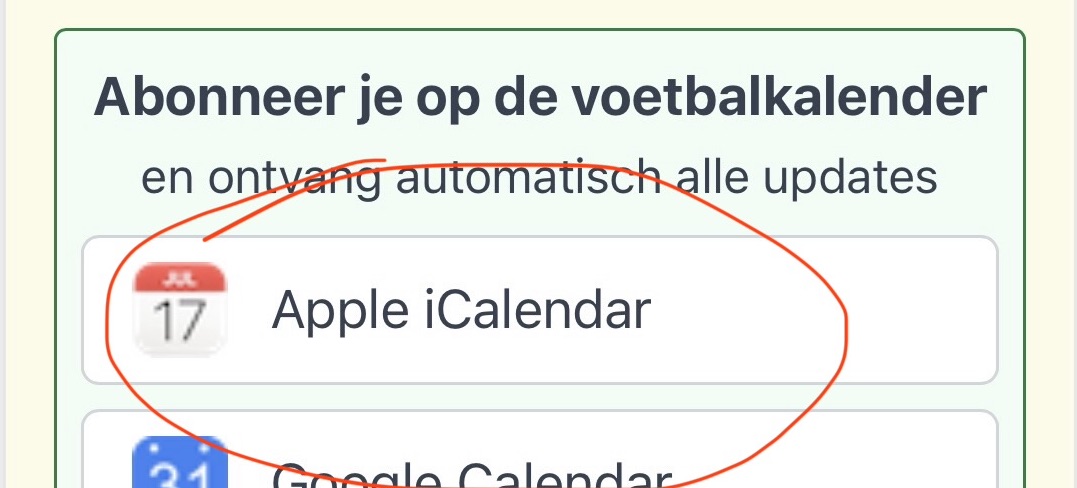
How to add the calendar to your iPhone?
- Click on Apple Calendar
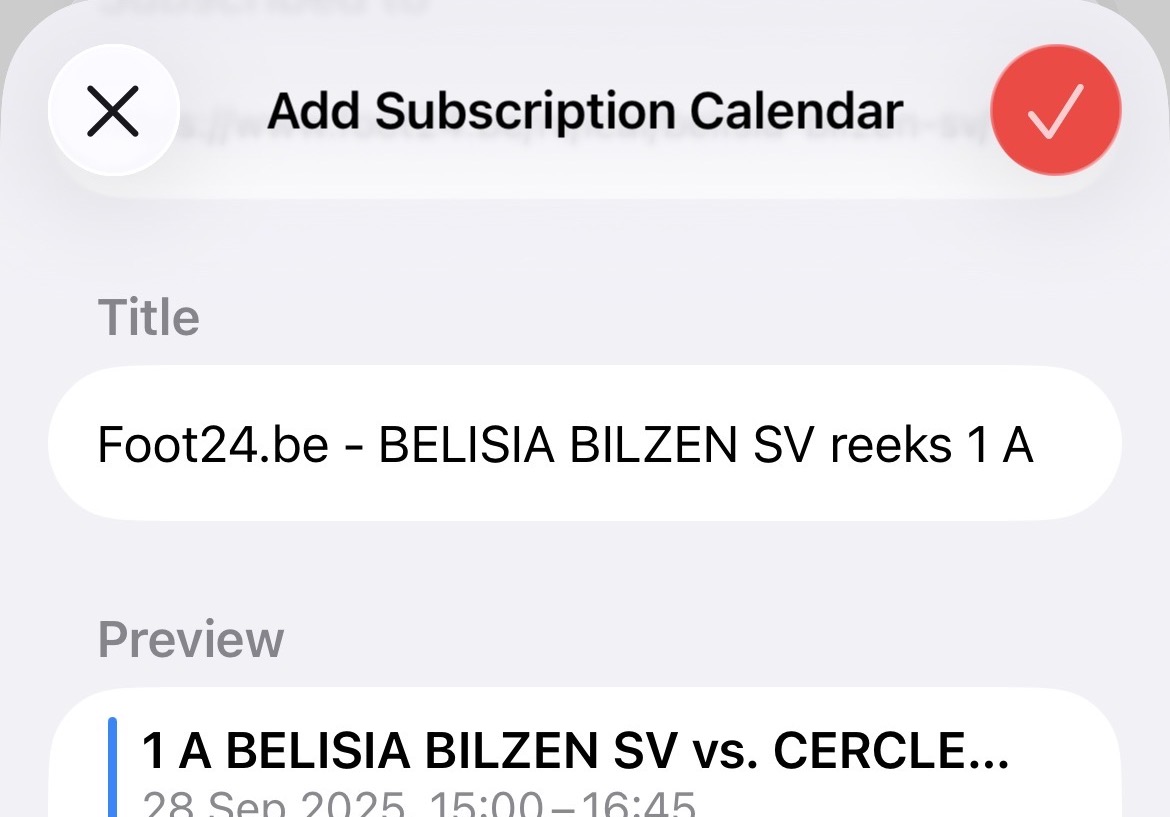
- Confirm the URL
- Click the "Confirm" button
- The match calendar has now been successfully added to your calendar
How to add the calendar to Apple iCloud Calendar?
- Open the Apple Calendar app
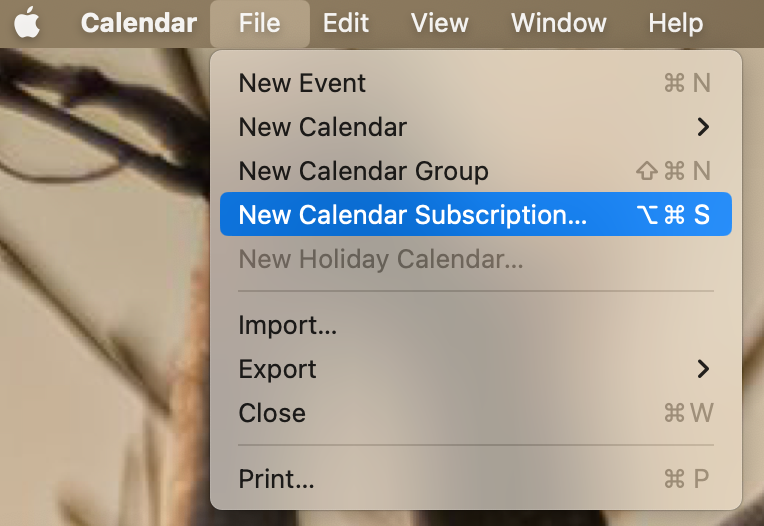
- In the menu bar, select "New calendar subscription"
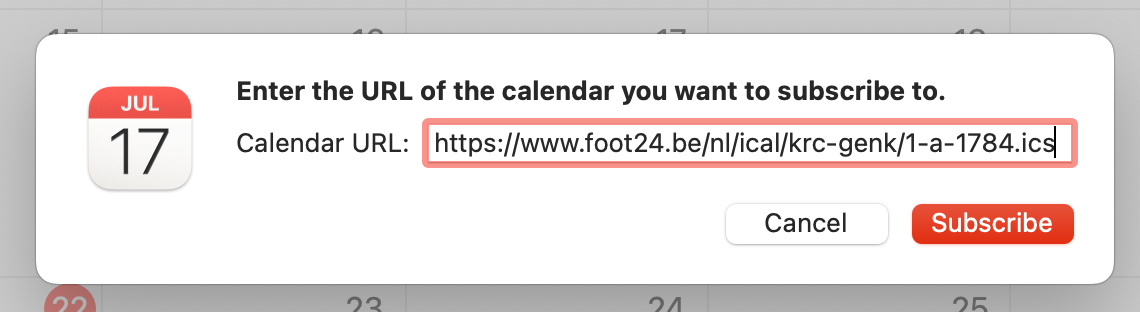
- Paste the calendar URL in the field and click "Subscribe"
- Optionally change the name of the calendar in the next window
- Make sure the calendar automatically refreshes by enabling "Auto-refresh"
- Click OK to confirm and add the football calendar

How to add the calendar to Google Calendar?
- Open Google Calendar
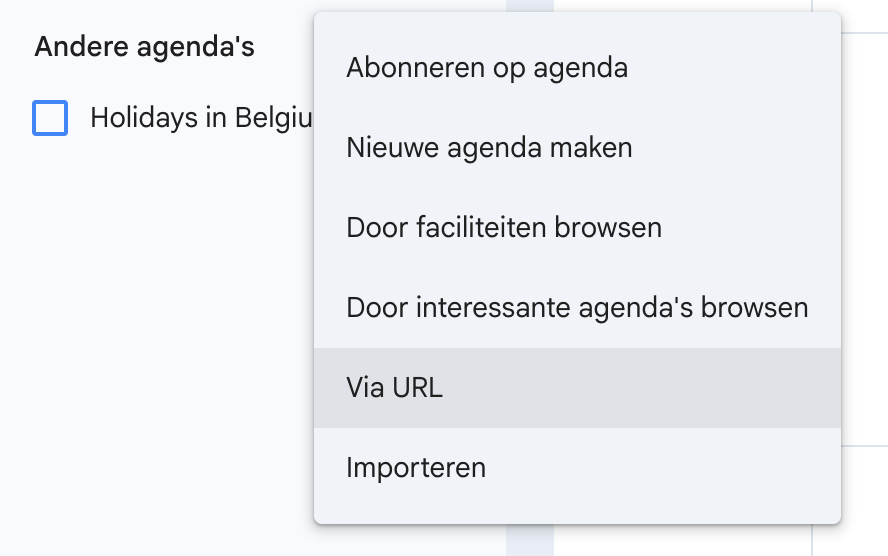
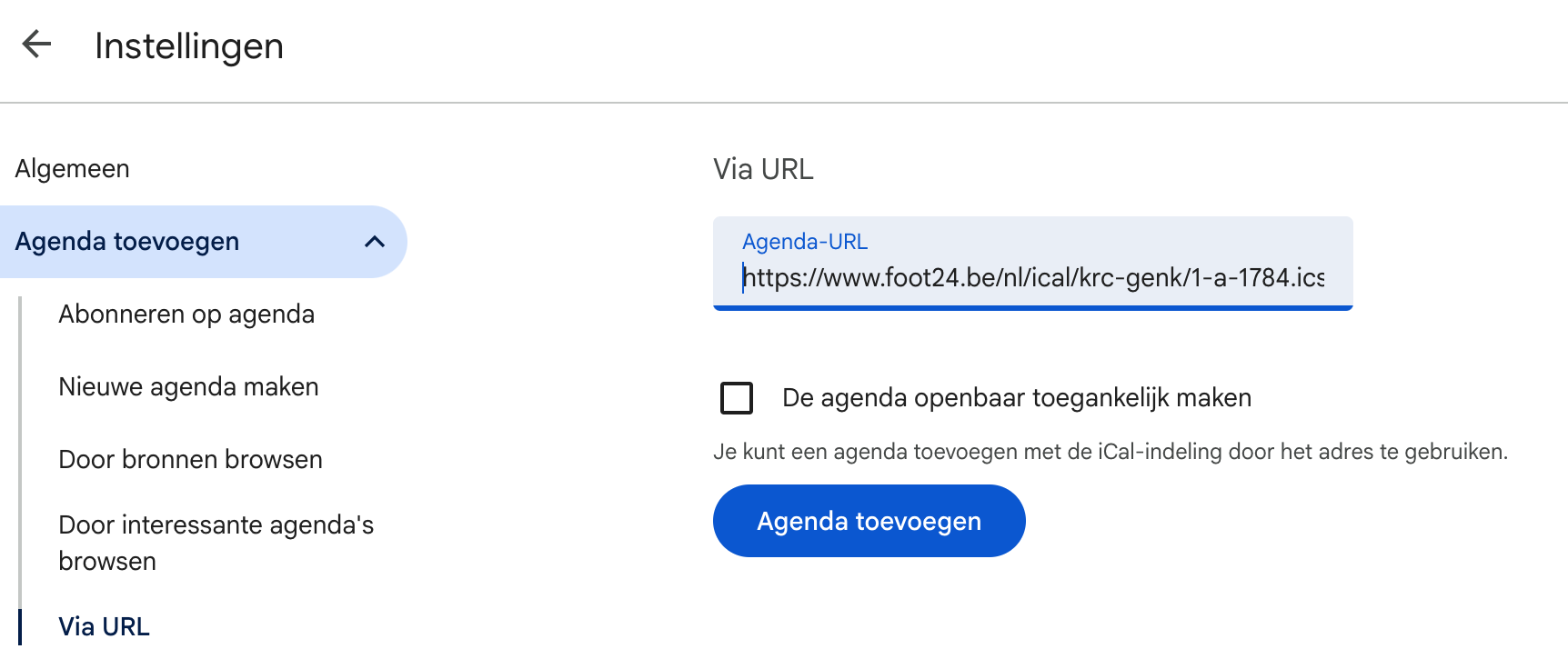
- Go to the "Other calendars" section and choose "Add by URL"
- Paste the calendar URL in the field and click "Add calendar"
- The match calendar has now been successfully added to your calendar

How to add the calendar to Outlook.com?
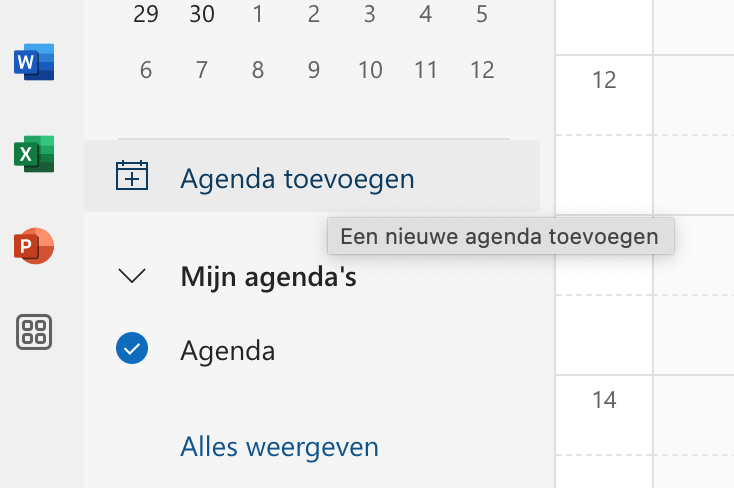
- Open Outlook Calendar
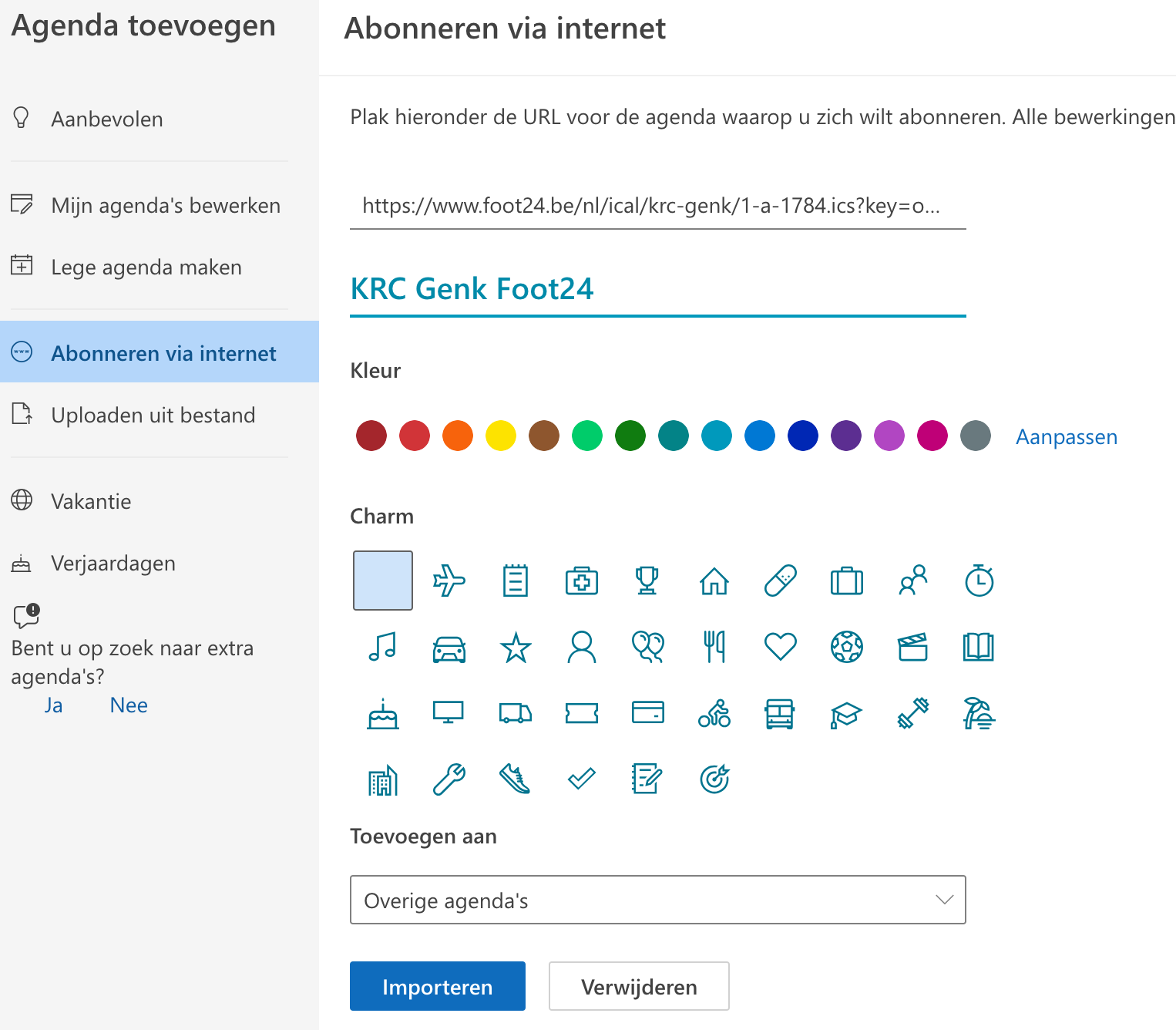
- Go to the "Add calendar" section and choose "Subscribe from web"
- Paste the calendar URL, give it a recognizable name, and click "Import"
- The match calendar has now been successfully added to your calendar
Fixtures24.com as an app on your phone
Put Fixtures24.com on your phone’s home screen and open it with one tap, just like an app. No app store needed.
iPhone and iPad (Safari)
- Open Fixtures24.com in Safari and tap Share at the bottom (a square with an arrow pointing up). If you don’t see that button, tap ··· first.
- Scroll down the menu and tap Add to Home Screen.
- Tap Add in the top right.
- The Fixtures24.com icon is now on your home screen.
9:41100%

fixtures24.com
‹›
▢⧉
9:41100%
Copy
Add to Reading List
Add to Home Screen
9:41100%
Cancel
Add
 Fixtures24
9:41100%
Fixtures24
Android (Chrome)
- Open Fixtures24.com in Chrome and tap the three dots ⋮ in the top right.
- Tap Add to Home screen or Install app.
- Confirm with Add or Install. The Fixtures24.com icon is now on your home screen.
9:41100%
fixtures24.com
⋮
9:41100%
fixtures24.com
⋮
New tab
Bookmarks
Add to Home screen
9:41100%
Fixtures24